|
|
||
 |
||
 Métro
| Introduction Installation Quick Tips First contact Compute a route More... Known issues i-Métro |
|
As on other platforms, Métro |
 for the Symbian
Qt is free to use. In exchange, we count
on your help to make the software better, by
| Introduction | |
|
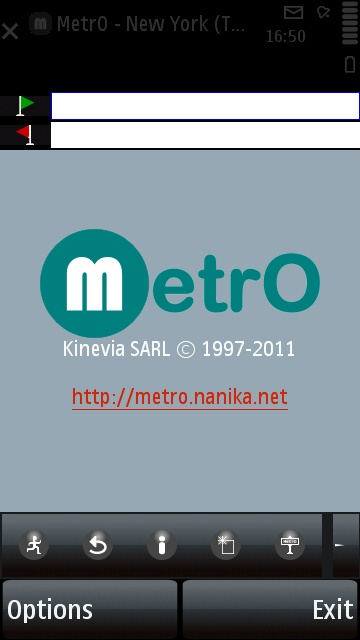
Métro The app is presently available in English and French. As usual, more languages will be added in the future (your help will be needed!) |
 |
|
An active Internet connection is required to search and download the city files used by the app. Please read the instructions below for installing cities. |
|
|
Before using Métro
|
|
| Installation | |
|
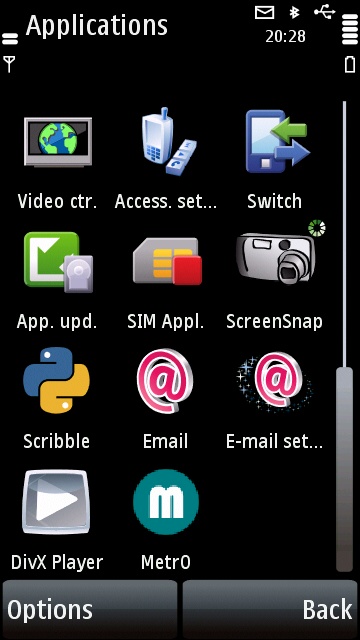
Métro For running the application, Qt libraries is needed. If the message “Component ‘Qt’ missing” is shown in the installation process, download and install Qt. NOTE: If you are downloading this from your mobile phone, use WLAN to avoid excessive data charges. If you are downloading this from your pc, install Qt runtimes, Qt Mobility and Qt webkit. To install the latest version of Métro |
|
| Quick Tips |
|
We know you don't want to bother with reading the user guide but we would like to highlight a few tips for somewhat "hidden" features. Please read these lines to be sure to use the application to the full! |
|
First contact On your first use, the screen is empty. Press /Options/Menu/Cities to get a list of all available cities (this step requires an active internet connection). |
|
Delete installed cities by pressing Check for and load updates by pressing Or press |
|
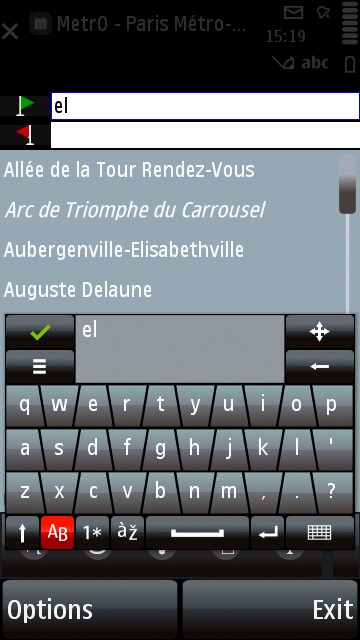
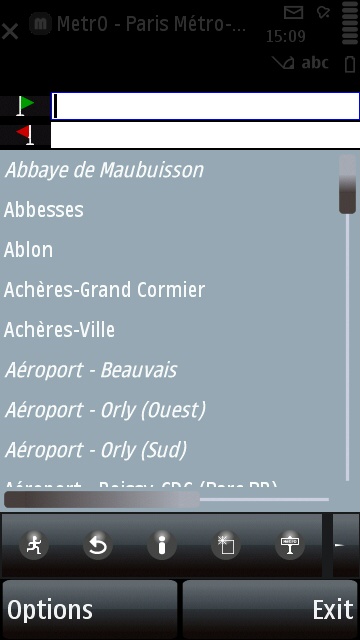
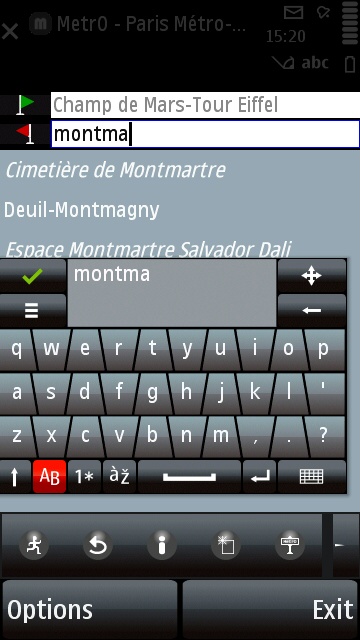
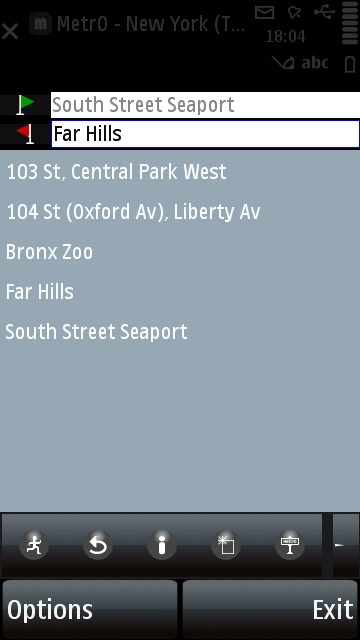
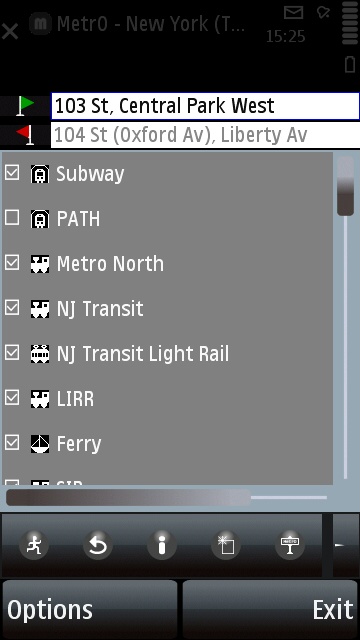
"Active stop" The main screen includes two fields to set your
departure and destination stops. At any time, one of these fields is
"active", as can be seen from its blue circling.
The active field is the one "used" when you press the To switch the "active stop", press on the currently active field and move your finger to the other field. |
|
Search route When you press |
|
Return route When you press |
|
"My location" (not yet implemented) In cities where geographic data is available, the In addition, this option is available only if you have activated the "Location services" in the "General" tab of the Symbian "Settings" app. |
|
Addresses (not yet implemented) In cities where geographic data is available, you may enter a street address for your start point or destination. Just add an '@' before the full address (with the city name). This option requires an Internet connection. However, your last 20 searched addresses are saved (and listed as soon as you enter the '@' character) and no connection is necessary to use them again. |
|
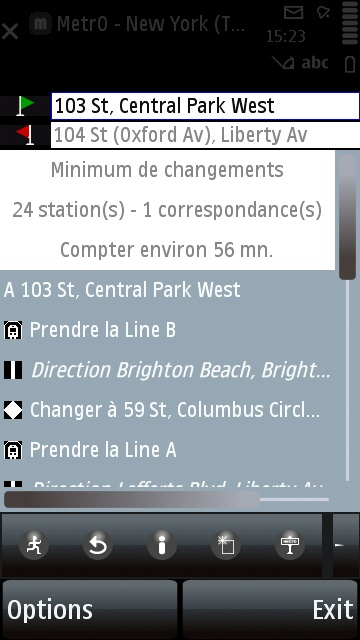
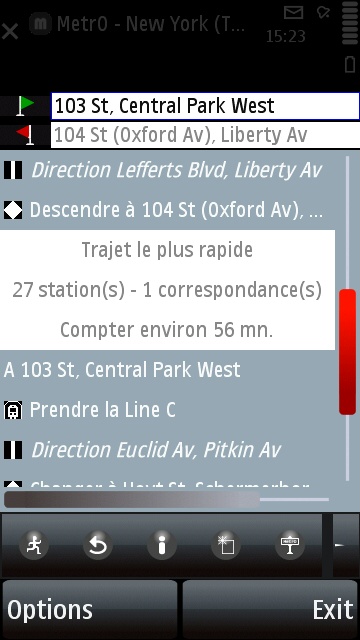
Results Within the route results, you may tap on any text line to display details on the corresponding route step. |
|
Reset Press |
|
Stop history When you press |
|
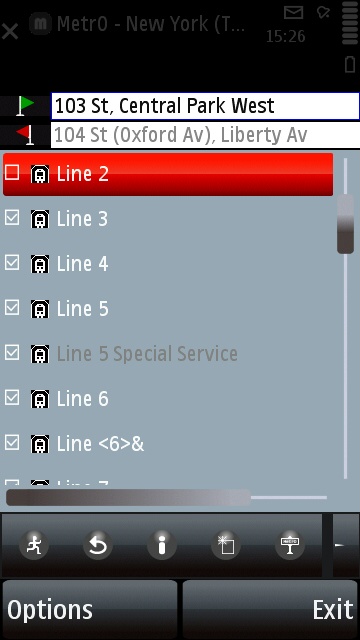
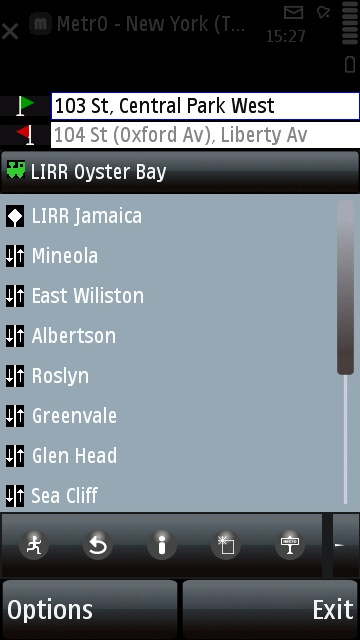
Route list When you press /Options/Menu/Lines, you get a list of "line groups" and routes. The ckeckbox next to each item gives the option to deactivate (or reactivate) "groups" and routes. When deactivated, a "group" or route will not be used for a calculation. Deactivated "groups" are saved when you quit the program (and will be restored on your next use), but not individual deactivated routes. The checkbox next to a route is grayed out if its "group" is deactivated and cannot be checked (you have to reactivate the "group" to change the line status). Line names are grayed out when they are not operating at the currently selected day and time. |
|
POIs When you tap on /Options/Menu/POI, a list of POIs ("Places of Interest") for the current city appears. If there are no POIs available for this city, the button is grayed out. But don't hesitate to send us information to enhance our databases. |
|
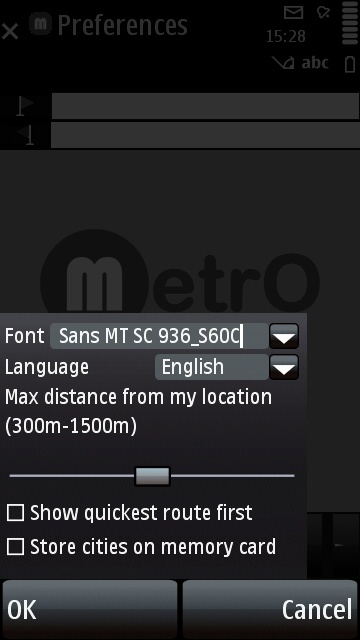
Preferences You may access to the app preferences by pressing /Options/Menu/Preferences. |
|
Switch cities You may return to the city list screen by pressing /Options/Menu/Selection Network. |
 .
 .
 to check for and load updates for all installed cities.
 button or when you select a
stop on a list.
 , the program searches and displays your route.
 , the departure and arrival stops are exchanged
and the program immediately searches and displays the return route.
 button will be active. Press
it to set your current location as your
departure or destination (depending on which one is the "active stop").
Please note that the location acquisition can take some
time.
 to erase the screen contents (departure and
arrival stop fields and the route results, if any) and restore the day
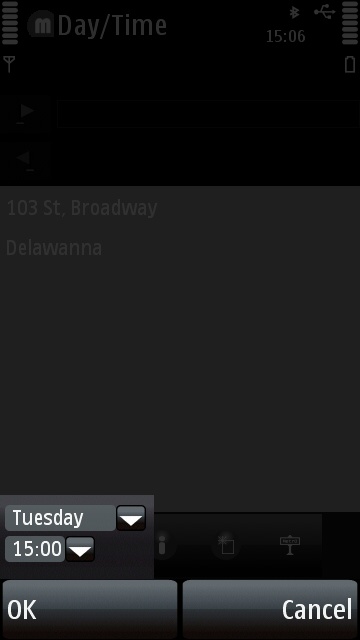
and time to their current values.
 ,
it will show the 10 last stops you used in a search.







| i-Métro | |
|
If you don't want to install Métro For this, you have 3 different options (they have all been tested on an iPod Touch):
|
 |
 |
Copyright © 1997-2011 Kinevia
SARL. All rights reserved. Last update by Frank VAN CAENEGEM on 23/03/2011 |

Métro... |